6 Contact
Summary
This explains the basics of making pretty bar plots in Matlab. The
Matlab 'bar' command is used, along with some nice scripts
discovered on the Matlab file exchange.
Example
Suppose you have some experimental data from two strains (Strain 1
and Strain 2) under four different experiment conditions (Condition
A,B,C,D). The means and standard deviations of your measurement of
interest look like:
Strain1_Mean=[0.5137 3.2830 1.5887 5.9188]; Strain2_Mean=[0.4042
2.9884 0.5709 2.7766]; Strain1_std=[1.1393 2.8108 2.2203 3.5233];
Strain2_std=[0.8762 2.8478 0.9878 2.2197];
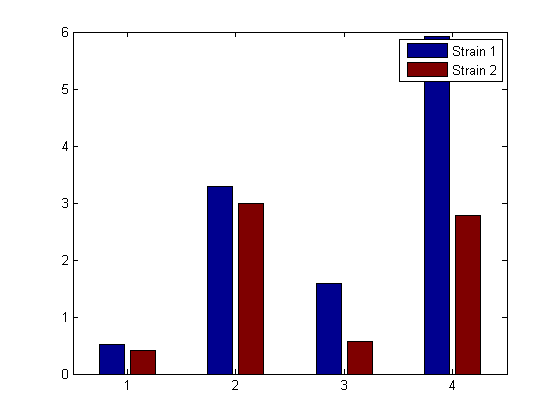
Use Matlab's
bar command to plot this data
(without error bars) as a bar chart:
bar([1 2 3 4],[Strain1_Mean' Strain2_Mean']) legend('Strain
1','Strain 2') pause; close all;
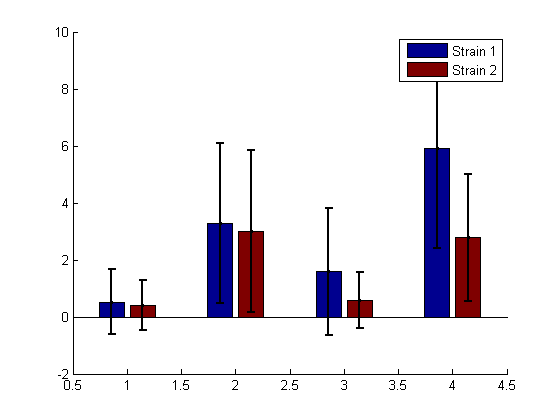
This looks ok, but we would really like some error bars, so we use
a handy function (barwitherr) from the Matlab file exchange:
h=figure; hold; barwitherr([Strain1_std' Strain2_std'], [1 2 3
4],[Strain1_Mean' Strain2_Mean']) legend('Strain 1','Strain 2')
pause; close all;
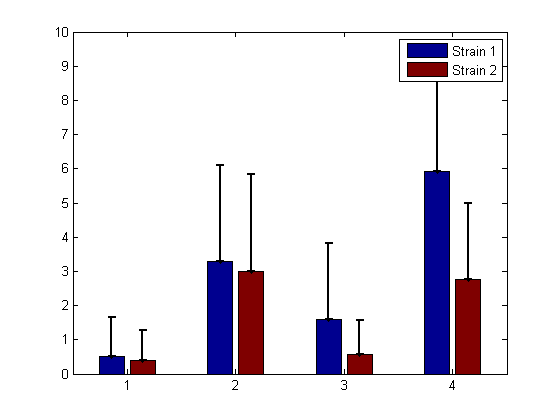
This is ok, but we'd rather only have one-sided error bars. To do
this, use a 4x2x2 matrix for the errors:
cat(3,zeros(4,2),[Strain1_std' Strain2_std'])
The function barwitherr uses the first matrix zeros(4,2) as the
lower error, and the second matrix [Strain1_std' Strain2_std'] for
the upper errors:
barwitherr(cat(3,zeros(4,2),[Strain1_std' Strain2_std']), [1 2 3
4],[Strain1_Mean' Strain2_Mean']) legend('Strain 1','Strain 2')
pause; close all;
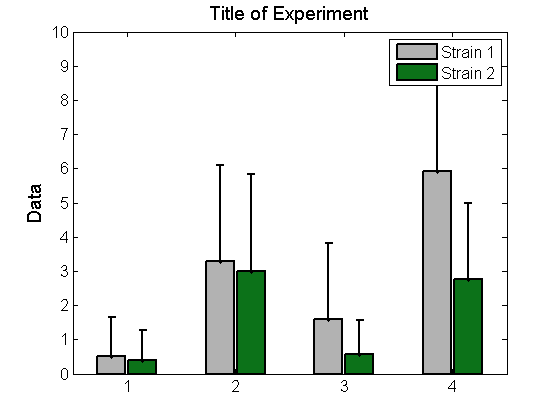
Don't like the colors? You can change them by modifying the
colormap:
barmap=[0.7 0.7 0.7; 0.05 .45 0.1];
%[0.7 0.7 0.7] is grey,
[ 0.05 .45 0.1] is green colormap(barmap);
ylabel('Data','FontSize',14) title('Title of
Experiment','FontSize',14) pause;
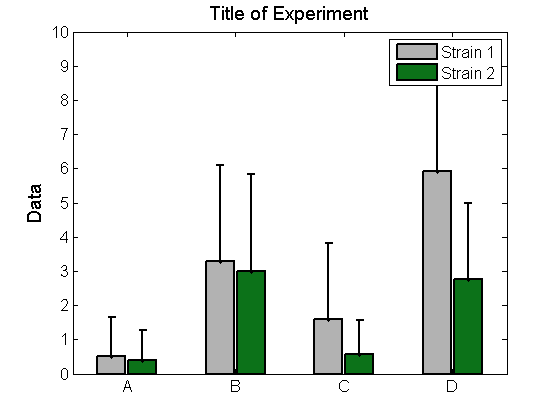
It isn't very useful to have our experimental conditions labelled
1,2,3,4. To change the x-ticks to labels:
set(ax, 'XTick',[1 2 3 4],'XTickLabel',{'A','B','C','D' });
pause;
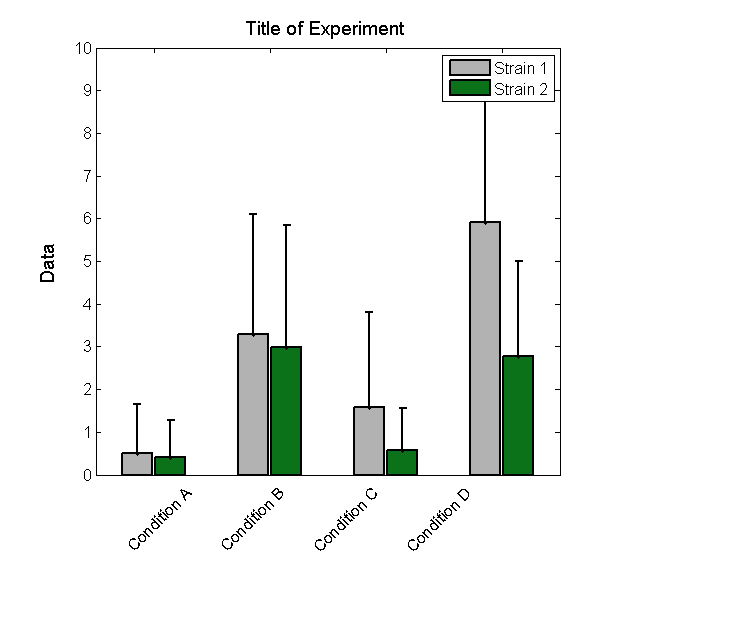
Maybe we would like more information in our x-tick labels. But if
the labels are too long, they will overlap. To get around this,
rotate the x-tick labels using the function xticklabel_rotate from
the Matlab file exchange (see references below):
set(ax, 'FontSize',12,'XTick',[1 2 3 4],'XTickLabel',{'Condition
A','Condition B','Condition C','Condition D' });
xticklabel_rotate([1 2 3 4],45,{'Condition A','Condition
B','Condition C','Condition D' }) pause
If you are going to use this figure in a presentation or paper you
can save it in various forms (including as a file for adobe
illustrator). Recall that h is our figure handle:
saveas(h, 'ExampleBar.fig','fig') saveas(h, 'ExampleBar.png','png')
saveas(h, 'ExampleBar.ai','ai') close all;
Code
You can copy and paste the code below into a Matlab m-file to run
all of the examples shown above. You will also need the two
functions listed in the references below, available from the Matlab
file exchange at
Matlab Central.
close all; %Suppose you have the following data for two different
strains across 4 %different experimental conditions (Conditions
A,B,C,D, from left to right) Strain1_Mean=[0.5137 3.2830 1.5887
5.9188]; Strain2_Mean=[0.4042 2.9884 0.5709 2.7766];
Strain1_std=[1.1393 2.8108 2.2203 3.5233]; Strain2_std=[0.8762
2.8478 0.9878 2.2197]; %Plot this data as a bar chart bar([1 2 3
4],[Strain1_Mean' Strain2_Mean']) legend('Strain 1','Strain 2')
pause; close all; %This looks ok, but we would really like some
error bars, so we use a handy %function from the file exchange:
h=figure; hold; barwitherr([Strain1_std' Strain2_std'], [1 2 3
4],[Strain1_Mean' Strain2_Mean']) legend('Strain 1','Strain 2')
pause; close all; %This is ok, but we'd rather only have one-sided
error bars. To do this, %you will send barwitherr zeros for the
lower error and keep the upper %error as is by sending in the
matrix cat(3,zeros(4,2),[Strain1_std' %Strain2_std']) for the error
barwitherr(cat(3,zeros(4,2),[Strain1_std' Strain2_std']), [1 2 3
4],[Strain1_Mean' Strain2_Mean']) legend('Strain 1','Strain 2')
pause; close all; %Now let's use better colors by changing the
color map and set the bar %widths, line widths, axis fonts etc to
something prettier barwitherr(cat(3,zeros(4,2),[Strain1_std'
Strain2_std']), [1 2 3 4],[Strain1_Mean'
Strain2_Mean'],'LineWidth',2,'BarWidth',0.9) legend('Strain
1','Strain 2') %set the axis properties ax=gca; set(ax,
'FontSize',12) %Don't like the colors? You can change them by
modifying the colormap: barmap=[0.7 0.7 0.7; 0.05 .45 0.1];
%[0.7 0.7 0.7] is grey, [ 0.05 .45 0.1] is a green
colormap(barmap); ylabel('Data','FontSize',14) title('Title of
Experiment','FontSize',14) pause; %It isn't very useful to have our
experimental conditions labelled 1,2,3,4 %so can we change these to
words? Yes: set(ax, 'XTick',[1 2 3 4],'XTickLabel',{'A','B','C','D'
}); pause; %But this isn't perfect, maybe we want more information
on the axis. To %have actual labels rotate them using the handy
xticklabel_rotate function: %set(ax, 'FontSize',12,'XTick',[1 2 3
4],'XTickLabel',{'Condition A','Condition B','Condition
C','Condition D' }); xticklabel_rotate([1 2 3 4],45,{'Condition
A','Condition B','Condition C','Condition D' }) pause %If you are
going to use this figure in a presentation or paper you can %save
it in various forms (including as a file for adobe illustrator):
%Recall that h is our figure handle: saveas(h,
'ExampleBar.fig','fig') saveas(h, 'ExampleBar.png','png') saveas(h,
'ExampleBar.ai','ai') close all;
Notes
Please feel free to post comments, questions, or improvements to
this protocol. Happy to have your input!
- Megan N McClean 17:27, 11
June 2012 (EDT): There are probably more elegant ways of doing
this, but this solution has worked well for me so far. Please feel
free to update and add information as you figure out better ways of
doing this.
References
Function xticklabel_rotate:
xticklabel_rotate
Function barwitherr:
barwitherr
Contact
or instead,
discuss
this protocol.


