Ubuntu上安装和配置Supervisor
2024-09-05 21:51阅读:
转:https://www.cnblogs.com/carsonzhu/p/16831223.html
一、前言
在许多服务器环境中,通常情况下,您将拥有许多要持久运行的小程序,无论这些程序是小型shell脚本,
Node.js应用程序还是任何大型软件包。
通常,外部包随单元文件一起提供,允许它们由 init 系统(如 systemd)管理,或者打包为可由容器引擎管理的
docker 映像。但是,对于未很好地打包的软件,或者对于不希望与服务器上的低级 init
系统交互的用户,拥有轻量级替代方案是有帮助的。
Supervisor是一个进程管理器,它提供了一个单一的界面来管理和监视许多长时间运行的程序。在本教程中,您将在 Linux
服务器上安装 Supervisor,并学习如何管理多个应用程序的 Supervisor 配置。
以下是 Supervisor 的主要优势:
- 方便:为所有单流程实例编写 rc.d 很不方便。同样,Rc.d
脚本不会自动重新启动崩溃的进程。但是,可以将 Supervisor 配置为在进程崩溃时自动重启进程。
- 准确性: 在 UNIX
中,通常很难获得进程的准确启动/停止状态。Supervisor 将进程作为子进程启动,因此它知道其子进程的 up/down
状态。这很容易为最终用户查询。
二、Supervisor安装与配置
1.安装
sudo apt update &&
sudo apt install
supervisor
|
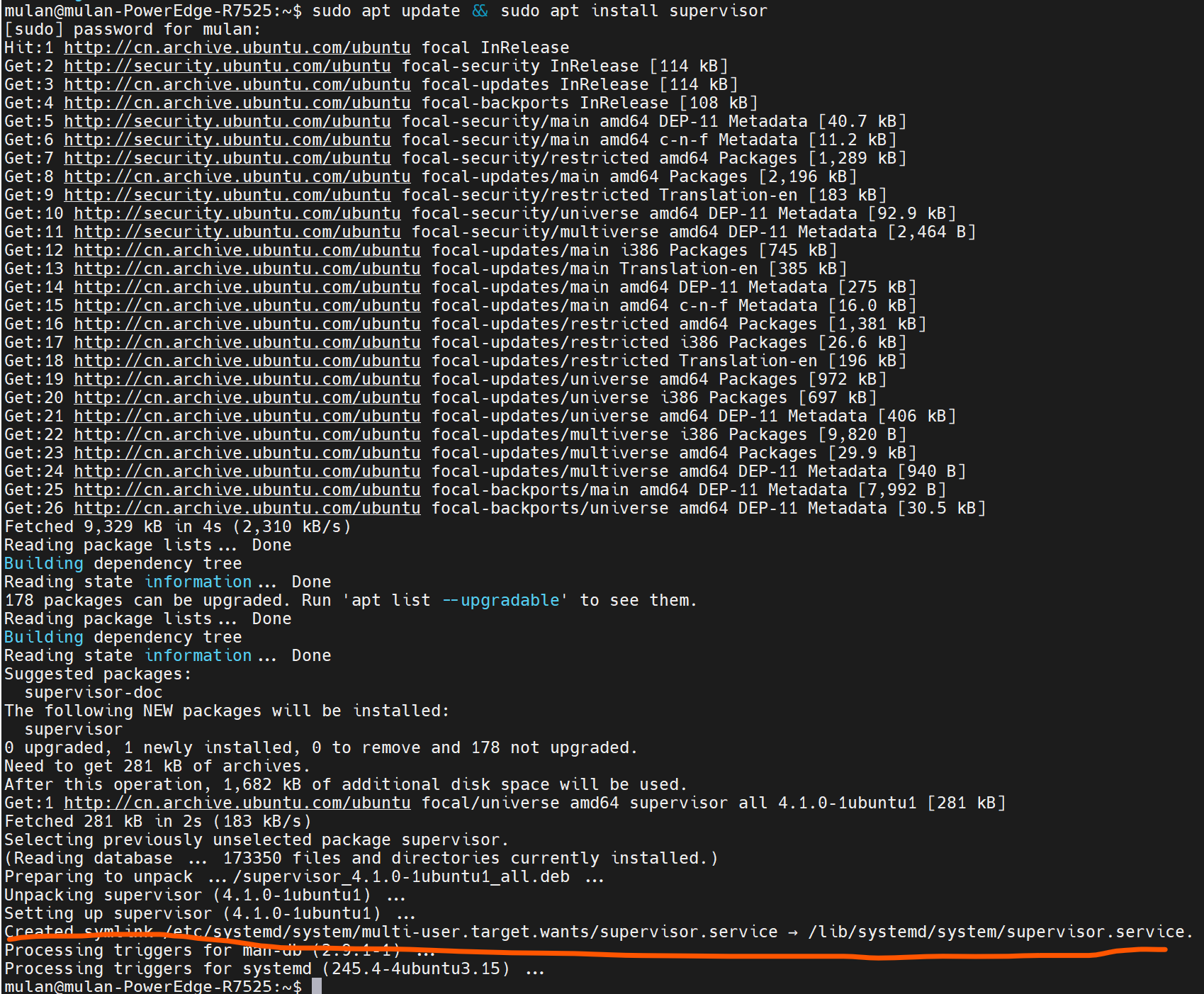
Supervisor服务在安装后自动运行(这点从安装后创建的symlink到systemd的自启动服务可以看出)。检查其状态:
1
|
sudo systemctl status
supervisor
|

2. 添加程序
使用 Supervisor 的最佳实践是为它将处理的每个程序编写一个配置文件。
在 Supervisor 下运行的所有程序都必须在
非守护模式下运行(有时也称为“前台模式”)。如果默认情况下你的程序在运行后会自动返回到
shell,那么你可能需要查阅程序的手册来找到启用此模式的选项,否则 Supervisor 将无法正确确定程序的状态。
2.1 创建一个脚本
1
|
sudo touch
/home/mulan/analysis_service.sh
|
里面添加需要执行的内容。
2.2 创建配置文件
Supervisor程序的每个程序配置文件位于
/etc/supervisor/conf.d
目录中,通常每个文件运行一个程序,并以
.conf
结尾。我们将为此脚本创建一个配置文件:
1
|
sudo touch
/etc/supervisor/conf.d/algo-analysis.conf
|
添加以下内容:
1
2
3
4
5
6
7
8
|
[program:algo-analysis-service]
command=/bin/bash
-c
/home/mulan/analysis_service.sh
autostart=true
autorestart=true
startretries=3
redirect_stderr=true
stderr_logfile=/var/log/analysis_service.err.log
stdout_logfile=/var/log/analysis_service.out.log
|
注意:上面当我使用下述command的时候,会出现“can't find
command”的错误而导致服务起不来,那是因为Supervisor does not start a shell at all,
either
bash or
sh -- so it's no surprise that it can't
find shell-builtin commands. If you need one, you're obliged to
start one yourself. 详情可参考:
/questions/43076406/why-cant-supervisor-find-command-source
1
|
command=/home/mulan/analysis_service.sh
|
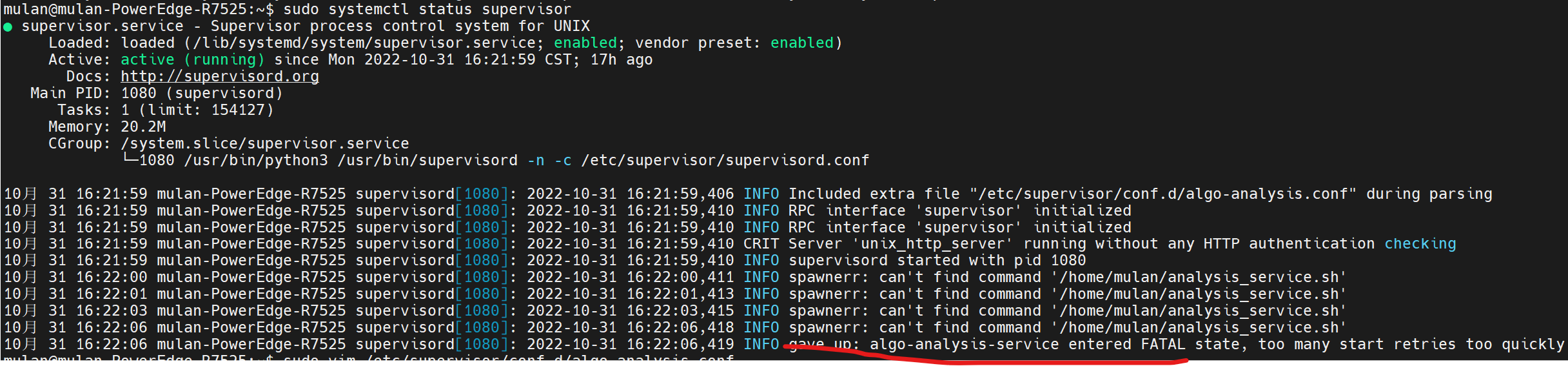
加上/bin/bash -c之后,服务就正常起来了:
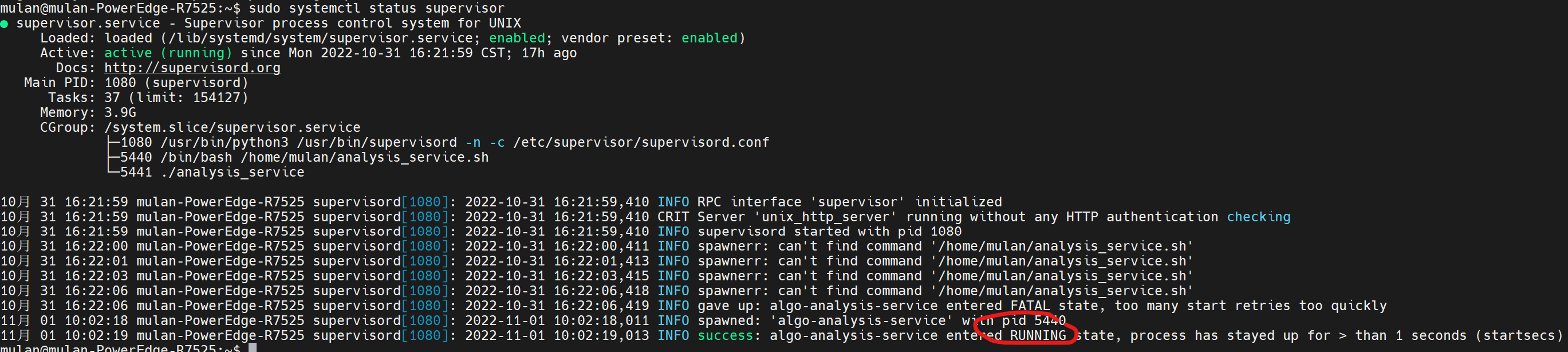
创建并保存配置文件后,我们可以通过
supervisorctl 命令通知
Supervisor 我们的新程序。首先,我们告诉 Supervisor 在
/etc/supervisor/conf.d
目录中查找任何新的或已更改的程序配置:
1
|
sudo supervisorctl reread
|

然后告诉它通过以下方式进行任何更改:
1
|
sudo supervisorctl
update
|

每当您对任何程序配置文件进行更改时,运行前面的两个命令都会使更改生效。
此时我们的程序应该正在运行。我们可以通过查看输出日志文件来检查它的输出:
1
|
sudo tail
/var/log/analysis_service.out.log
|
3. 管理程序
除了正在运行的程序之外,您还需要停止、重新启动或查看它们的状态。
我们在上面使用的 supervisorctl
程序也有一个交互模式,我们可以使用它来控制我们的程序。
要进入交互模式,请运行不带参数的 supervisorctl:

supervisorctl最初将打印所有已配置程序的状态和正常运行时间,然后是其命令提示符。输入
help将显示其所有可用命令:
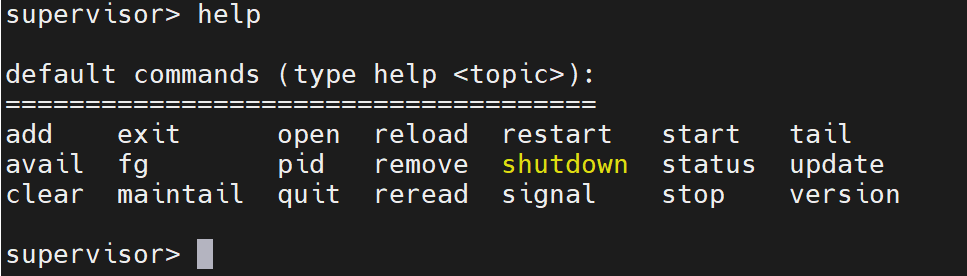
您可以使用关联的命令后跟程序名称来
start or
stop程序:
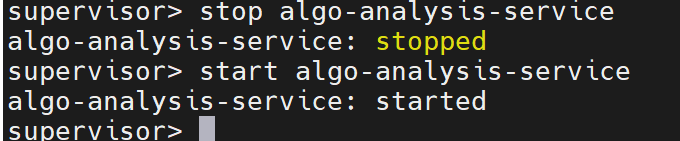
使用
tail命令,您可以查看程序的 stdout 和 stderr 日志中的最新条目:

使用
status您可以在进行任何更改后再次查看每个程序的当前执行状态:

最后,您可以使用 Ctrl+C 或输入
quit提示符退出 supervisorctl。
4.启用 Supervisor Web 界面
Supervisor 提供了一个基于 Web 的界面来管理所有进程,但默认情况下它是禁用的。您可以通过编辑文件
/etc/supervisor/supervisord.conf 来启用它:
1
|
sudo vim
/etc/supervisor/supervisord.conf
|
在如下内容中:
1
2
3
4
5
6
7
8
9
10
11
12
13
14
15
16
17
18
19
20
21
22
23
24
25
26
27
28
|
; supervisor config file
[unix_http_server]
file=/var/run/supervisor.sock
; (the path to the socket
file)
chmod=0700
; sockef file mode
(default 0700)
[supervisord]
logfile=/var/log/supervisor/supervisord.log
; (main log file;default
$CWD/supervisord.log)
pidfile=/var/run/supervisord.pid ;
(supervisord pidfile;default supervisord.pid)
childlogdir=/var/log/supervisor
; ('AUTO' child
log dir, default $TEMP)
; the below section must remain in
the config file for
RPC
; (supervisorctl/web interface) to
work, additional interfaces may be
; added by defining them in
separate rpcinterface: sections
[rpcinterface:supervisor]
supervisor.rpcinterface_factory =
supervisor.rpcinterface:make_main_rpcinterface
[supervisorctl]
serverurl=unix:///var/run/supervisor.sock
; use a unix:// URL
for a unix socket
; The [include] section can just contain the
'files' setting. This
; setting can list multiple files (separated by whitespace
or
; newlines).  It can also contain wildcards.
The filenames are
; interpreted as relative to this
file. Included files
*cannot*
; include files themselves.
[include]
files =
/etc/supervisor/conf.d/*.conf
|
添加以下行:
1
2
3
4
|
[inet_http_server]
port=*:9001
username=admin
password=admin
|
保存并关闭文件,然后重新启动 Supervisor 服务以应用更改:
1
|
systemctl restart supervisor
|

